

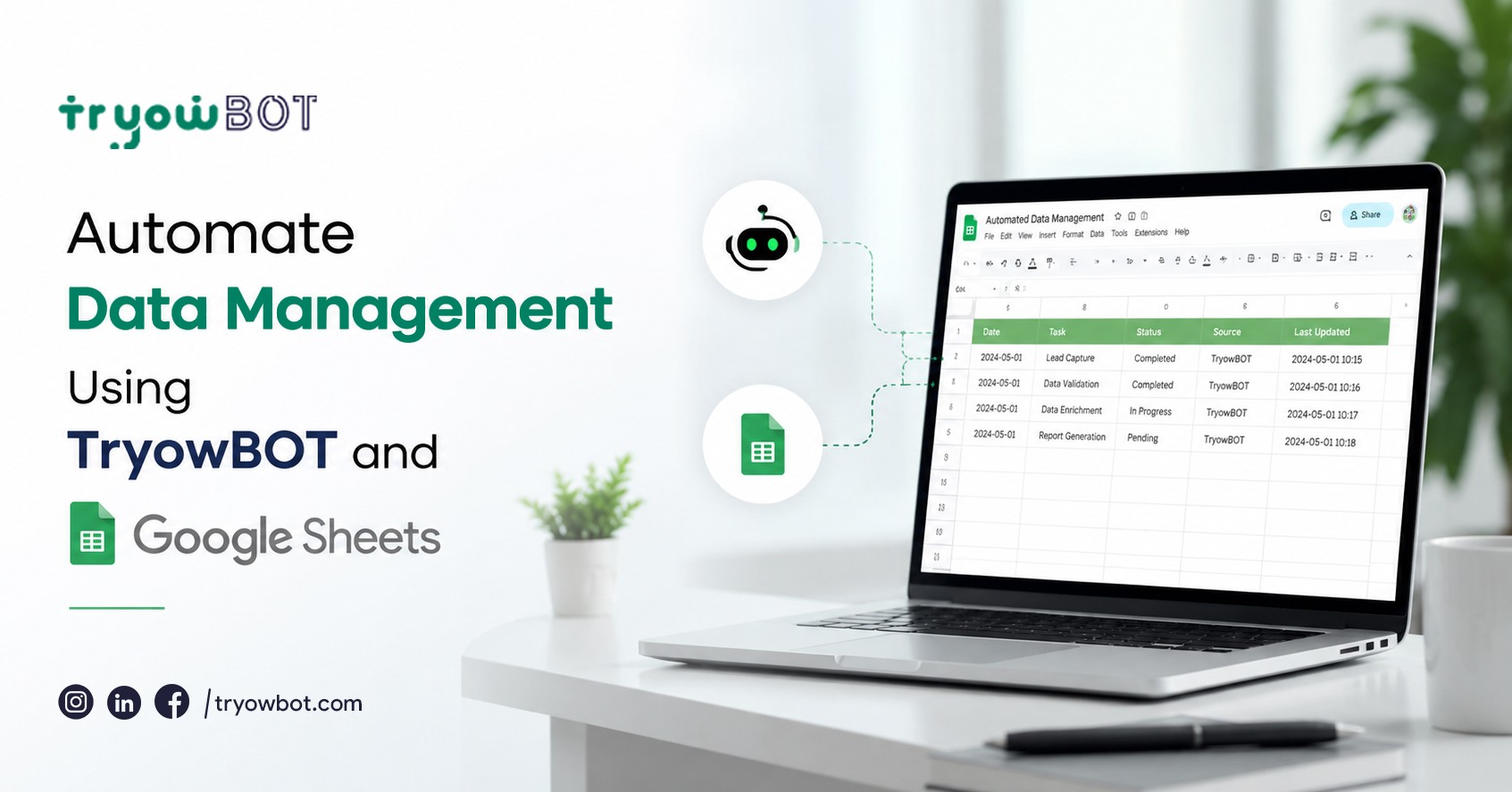
Managing leads efficiently is essential for every business. To make your lead handling and customer communication easier, we introduced a new feature in the Smart Automation section in TryowBOT – Google Sheets Integration.
This integration allows businesses to connect their Google Sheets directly with TryowBOT WhatsApp API, making it simple to manage leads, maintain customer data, and trigger WhatsApp campaigns from a single spreadsheet.
Instead of manually exporting, importing, or managing customer lists across multiple platforms, businesses can now use Google Sheets as a centralized lead management system and automate WhatsApp communication with just a few clicks.
Why Use Google Sheets Integration?
Many businesses already use Google Sheets to maintain customer and lead information. With this integration, your spreadsheet becomes more than just a data repository – it becomes a powerful automation tool.
Key Benefits
- Maintain and update customer records in one centralized location.
- Launch WhatsApp campaigns directly from Google Sheets.
- Reduce manual effort and repetitive communication tasks.
- Keep lead management and messaging workflows synchronized.
- Easy access for marketing, sales, and support teams.
- Improve operational efficiency with automated processes.
How the Integration Works
The integration connects your Google Sheet with TryowBOT WhatsApp API. Whenever a new lead is added or existing data is updated, TryowBOT can automatically trigger WhatsApp template messages based on predefined conditions.
All customer information remains organized within your Google Sheet while TryowBOT handles message delivery in the background.

Step 1: Configure Your Google Sheet
Create a Google Sheet and add the following headers:
| Name | Phone | Send Message |
|---|
Column Details
Name
Customer or lead name.
Phone
Customer WhatsApp number including country code.
Send Message
This column controls whether a WhatsApp message should be sent.
- Yes – WhatsApp message will be triggered.
- No – No message will be sent.
Once your sheet is ready, you can proceed with the TryowBOT configuration.
Step 2: Configure an Event in TryowBOT
Navigate to:
WhatsApp → Settings → Google Sheets → Configuration
Click Add Event.
During event creation:
- Select the WhatsApp template you want to send.
- Configure template variables.
-
Map variables using:
- Static Value – Fixed values that remain the same for every message.
- Column Mapping – Dynamic values pulled directly from Google Sheet columns.
- Save the configuration.
After saving:
- Copy the generated Google Apps Script code provided by TryowBOT.
- Open your Google Sheet.
- Navigate to Extensions → Apps Script.
- Remove the default sample code.
- Paste the script copied from TryowBOT.
- Save the Apps Script project.
At this stage, your Google Sheet is connected and ready for automation.
Step 3: Create the Trigger
Inside Google Apps Script:
- Open Triggers.
- Click Add Trigger.
-
Configure the trigger settings:
- Function: handleSheetEdit
- Deployment:Head
- Event Source: From Spreadsheet
- Event Type: On Edit
Save the trigger configuration and authorize the required Google permissions when prompted.
Once permissions are granted, the automation becomes active.
Testing the Integration
To verify the setup:
- Open your configured Google Sheet.
-
Add a new row with:
- Name
- Phone Number
- Send Message = Yes
- Save the row.
If the contact receives the configured Whatsapp template message, the integration has been successfully configured.
Real-World Use Cases
Businesses can use Google Sheets Integration for:
- Lead follow-up campaigns
- Customer on boarding messages
- Appointment confirmations
- Order updates
- Promotional broadcasts
- Sales team lead management
- Customer engagement workflows
The entire process can be managed directly from a spreadsheet without logging into multiple systems.
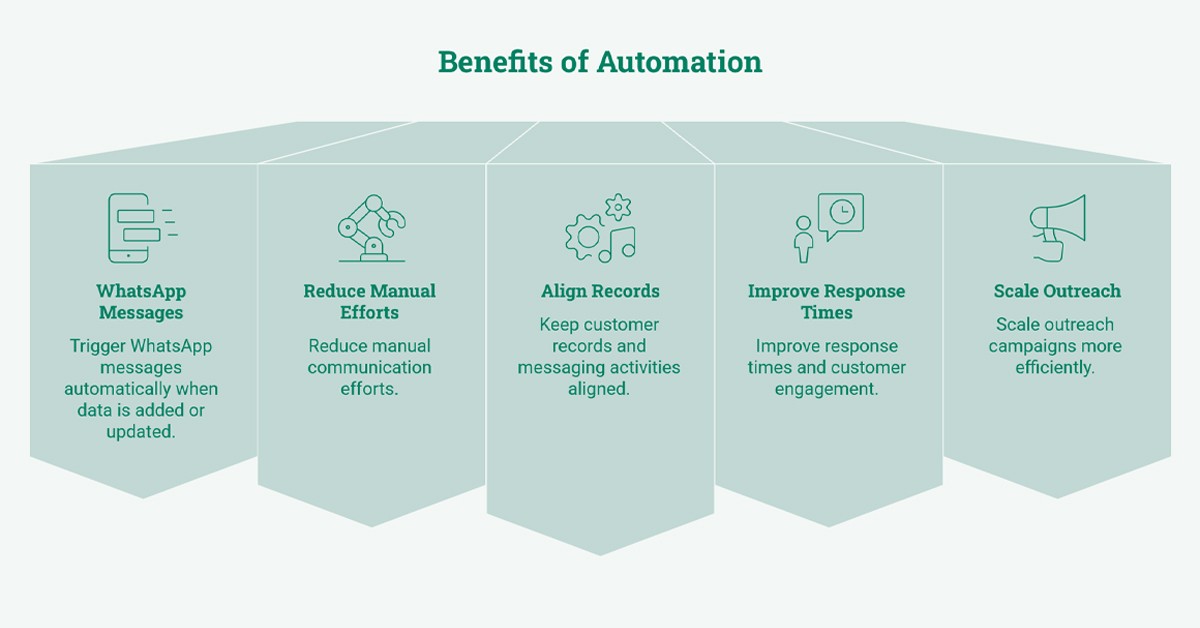
Benefits of Automation
With Google Sheets and TryowBOT working together, businesses can:
- Trigger WhatsApp messages automatically when data is added or updated.
- Reduce manual communication efforts.
- Keep customer records and messaging activities aligned.
- Improve response times and customer engagement.
- Scale outreach campaigns more efficiently.
Simplify Lead Management with TryowBOT
Google Sheets Integration transforms a simple spreadsheet into a powerful lead management and WhatsApp automation system. Businesses can manage customer information, trigger campaigns, and streamline communication workflows from a single platform.
By combining the flexibility of Google Sheets with the automation capabilities of TryowBOT WhatsApp API, teams can save time, improve productivity, and ensure every customer receives the right message at the right moment.
Start using Google Sheets Integration today and make your WhatsApp communication smarter, faster, and more organized.